CSV import
Under WooCommerce, Passport tools, Import, upload a spreadsheet from a supplier or your ERP, map its columns to passport fields and see a dry run report before anything changes. Products are found by SKU, product ID or GTIN, and get a passport when they have none yet. Empty cells never overwrite saved values.
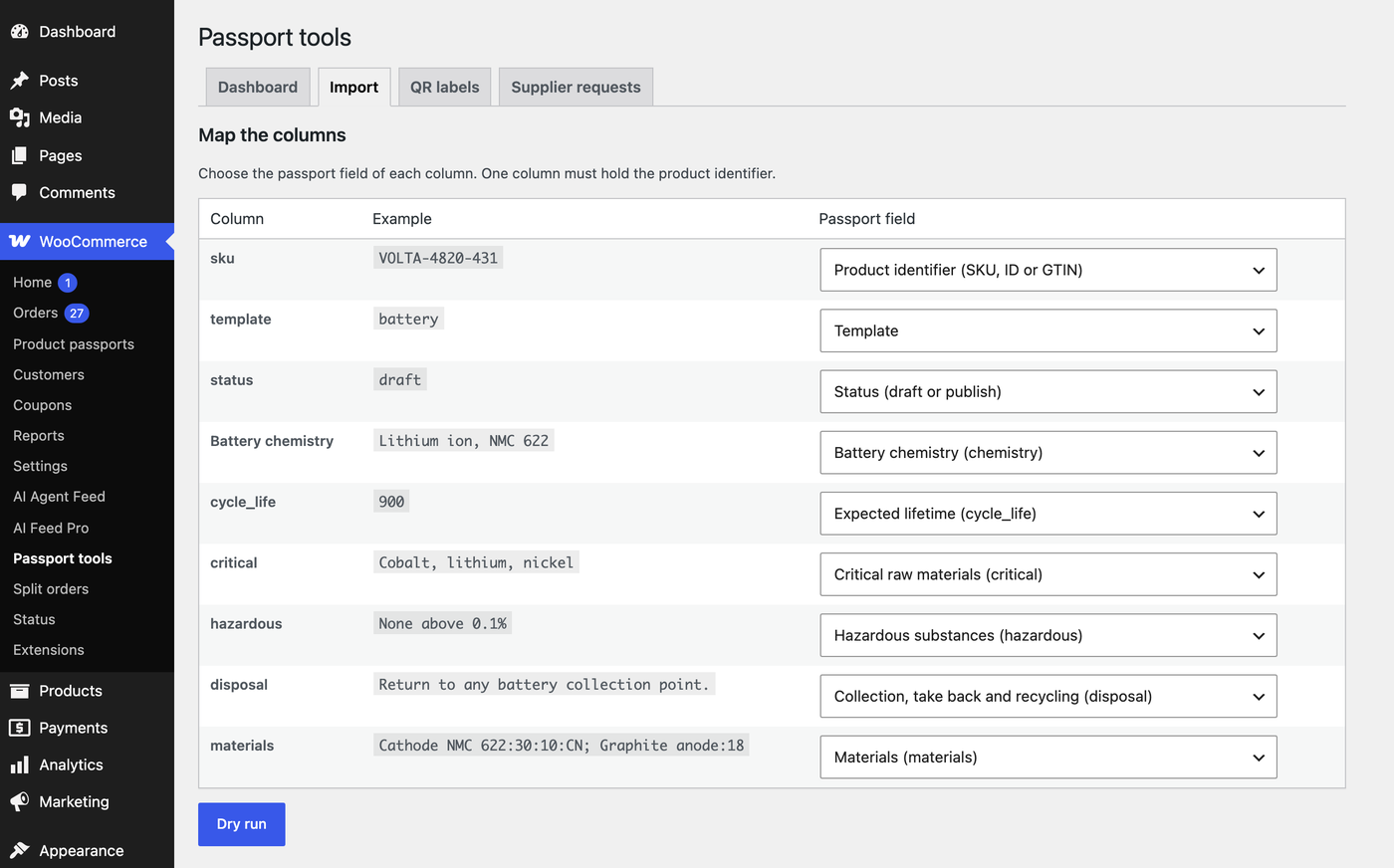

Materials cells use Cotton:60:20:PK; Polyester:40 (name, share, recycled share, origin) and documents cells use Manual=https://...; Declaration=https://.... Download a sample file for each template from the Import tab.
Supplier request portal
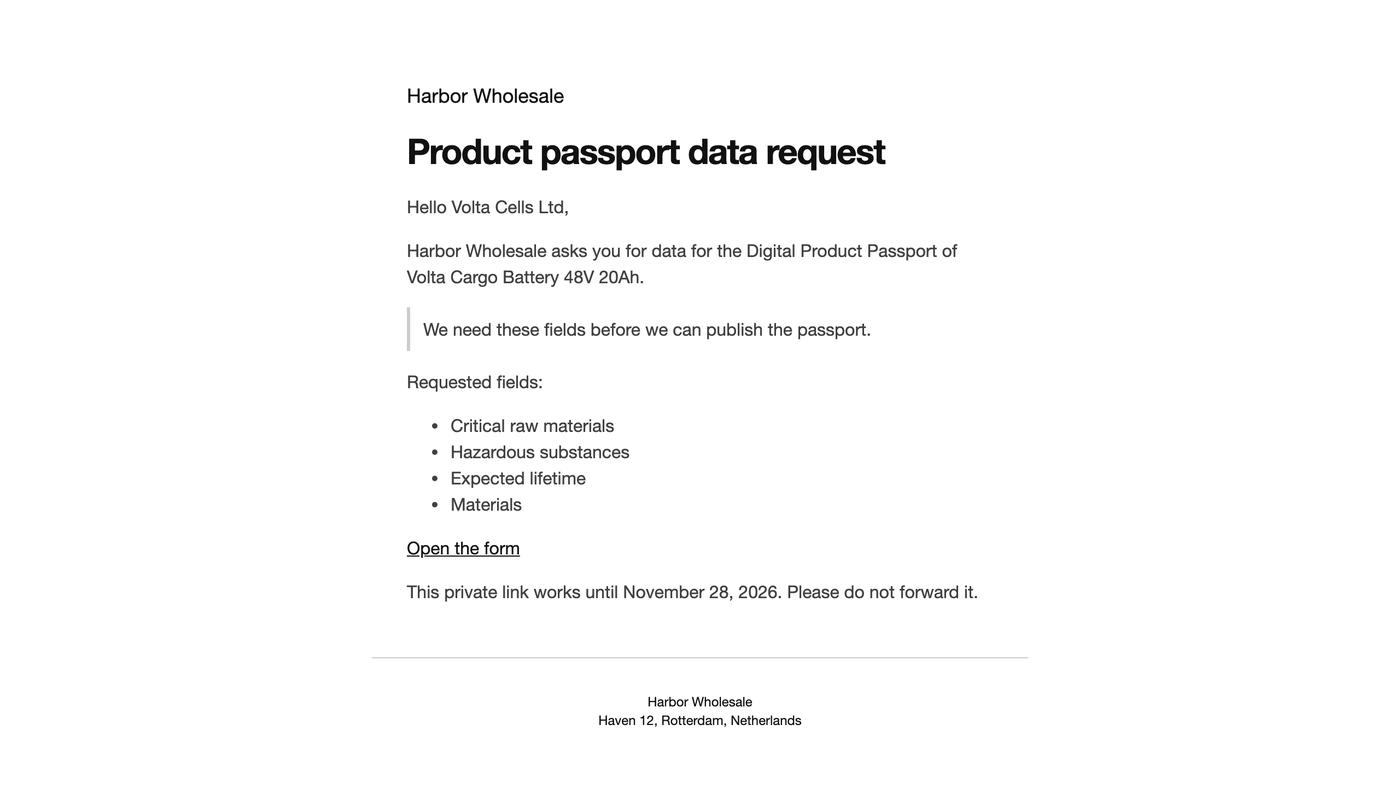
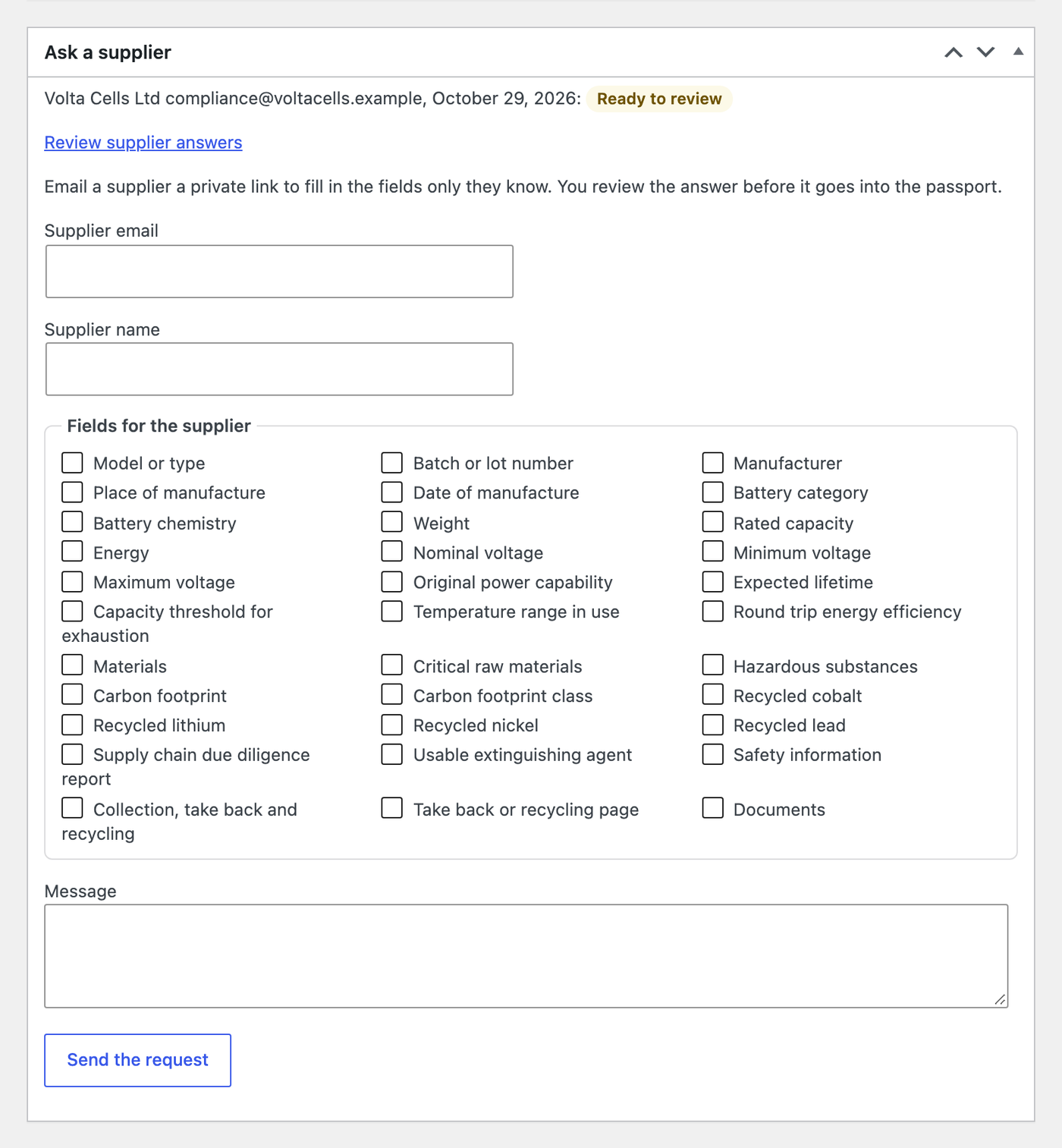
Some data only the manufacturer knows, such as recycled content or material origin. In the Ask a supplier box on a passport screen, enter the supplier’s email, tick the fields they should fill (missing required fields are ticked for you) and add a message. The supplier gets an email with a private link to a simple form showing only those fields. You review the answer before it goes into the passport.

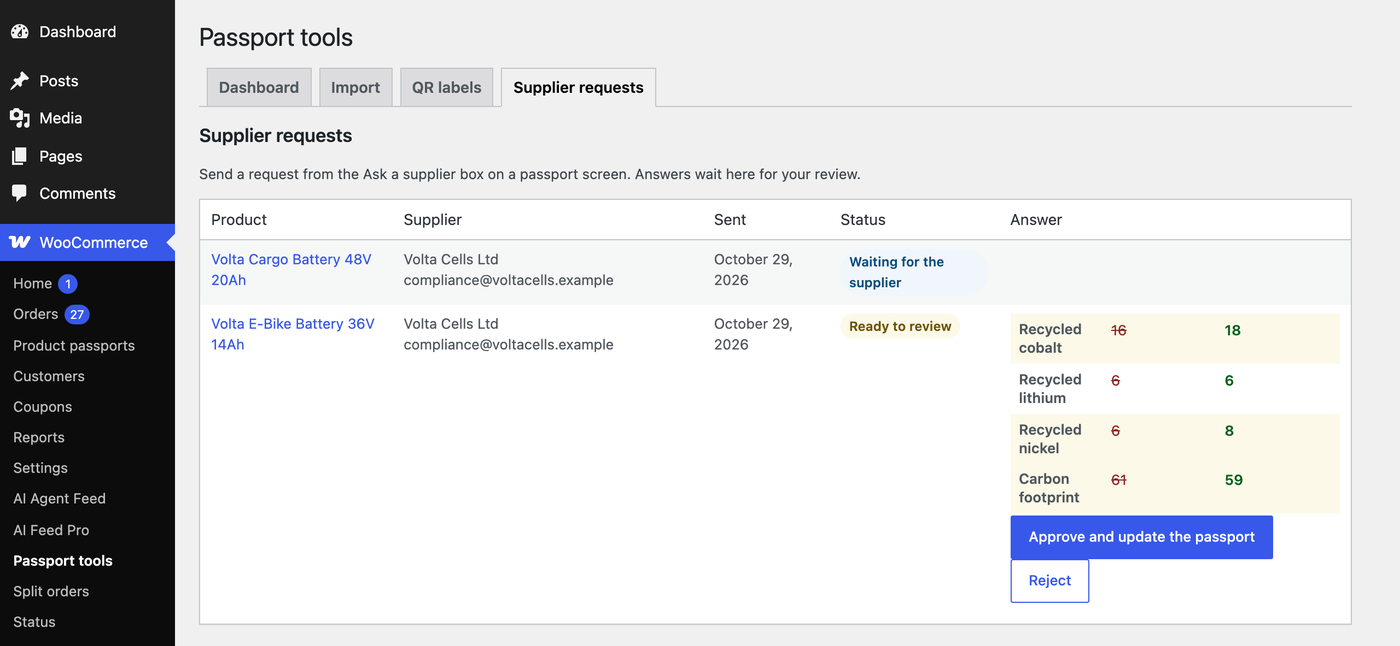
- Links expire after 30 days (change it under Settings, Passports, Pro) and stop working once answered.
- The store gets a Supplier data submitted email when a supplier answers. Both emails can be edited under WooCommerce, Settings, Emails.