Docs / B2B Order Approval
Reviewing orders
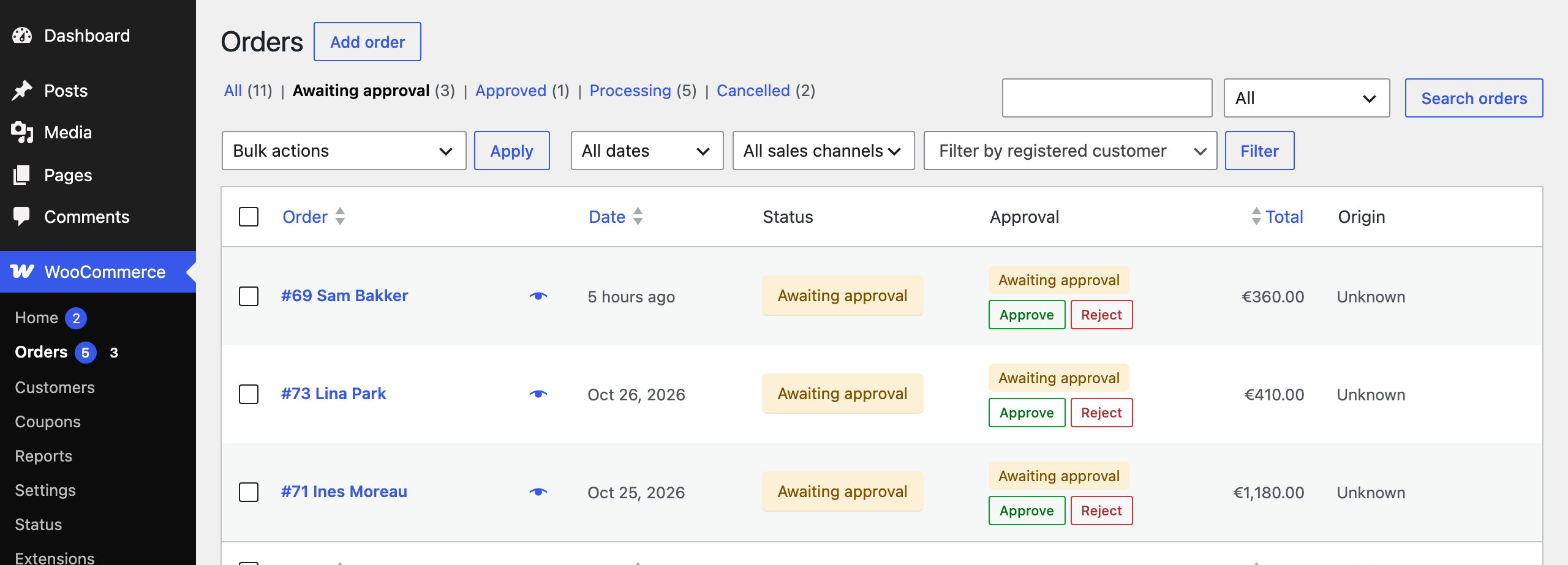 The Awaiting approval filter, the Approval column and quick Approve and Reject buttons on the orders list.
- The Orders menu shows how many orders are waiting, and the store gets a “New order awaiting approval” email with a link.
- Approve one order with its quick button, or tick several and choose Approve orders under Bulk actions.
- When a reason is required, Reject opens the order so you can write one. Bulk reject is offered only when no reason is required.
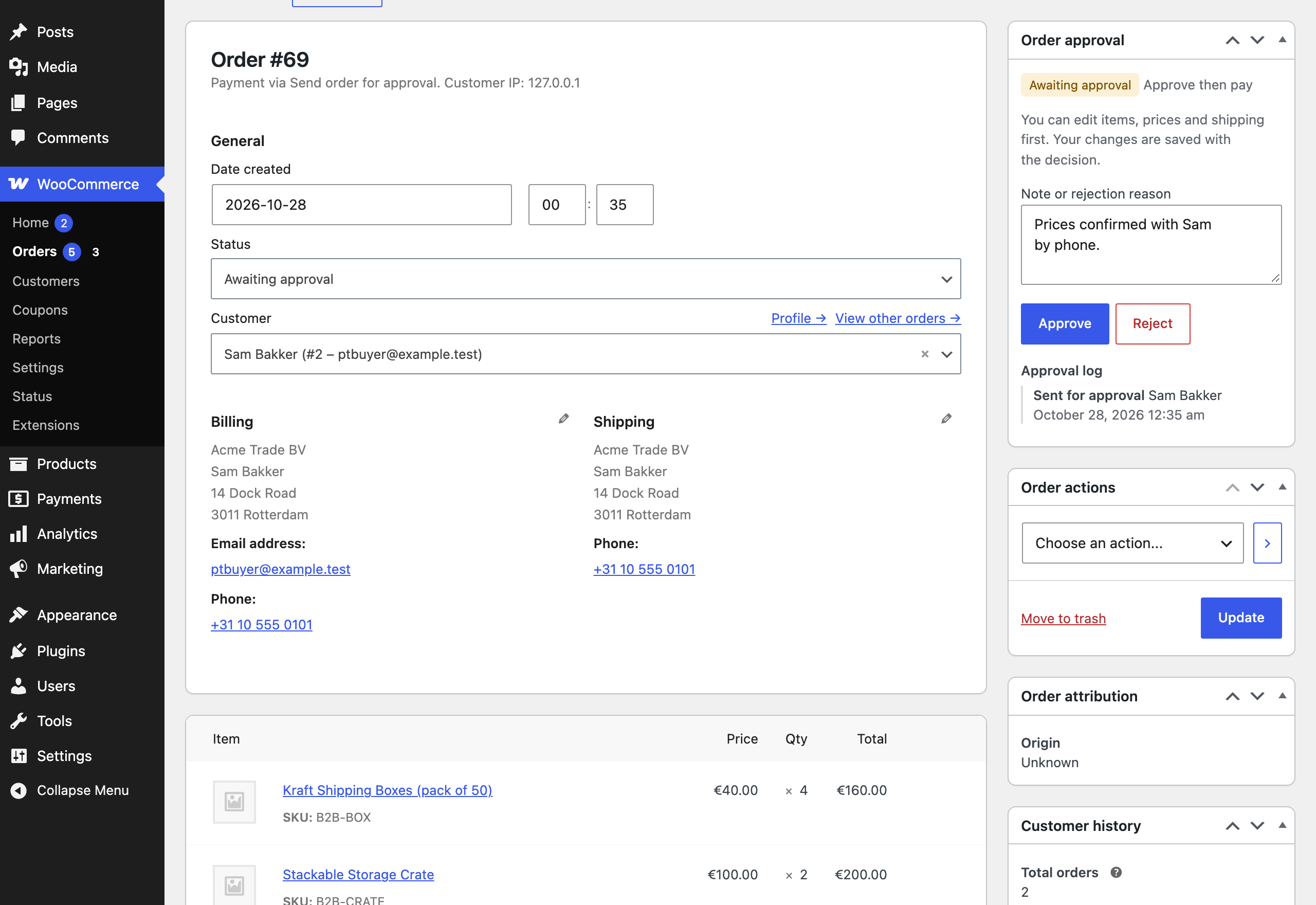 The Order approval box on the order screen, with the note or rejection reason, Approve and Reject, and the approval log.
- Waiting orders stay editable. Change items, prices, quantities or shipping, then click Approve. Your changes are saved with the decision.
- The approval log shows who sent, approved or rejected the order, when, and the note.
